See it in action

A tour of the key features

ArgCode Commander is a dual-pane file commander for Windows. Every panel, tab, and shortcut is designed to keep your hands on the keyboard and your eyes on the files.

The things you will use every day, each with a look at the real app.

Two file panels with tabbed cards, photo thumbnails on the left and a file list on the right, bookmarks on both sides
Panels

Two panels, as many cards as you like

Each panel holds tabbed cards — folders, editors, previews, a browser, a terminal — open, reorder, pin and close them like browser tabs.

  • Drag a card into the other panel, or swap both panels with ShiftTab
  • Every card you had open is back the next time you start the app — pinned ones first
  • Row list or a grid of thumbnails per folder; a name filter narrows any card as you type
  • Hide either panel or the bookmarks to give the rest the full width
  • Show hidden files, or ask before every copy and move, from Settings
Dual panels, multi-card eachTwo independent file panels, each holding as many folder or editor cards as you like — open, reorder, and close them like browser tabs. Each panel can be hidden, and hidden files/folders can be shown or hidden from Settings.
Nested bookmark categories for folders and files, and a web bookmarks panel
Bookmarks

Nested bookmarks, organized your way

Folders and files in categories as deep as you need, plus a separate tree for web bookmarks with their favicons.

  • Drag anything from a panel into the tree; drag bookmarks around to reorder or re-file them
  • Rename a bookmark (F2) without touching the file it points at
  • Keep the trees at the side, or move either one to a bar across the top of the window
  • Import your browser's bookmarks, or export yours — plain text files you can edit anywhere
  • Right-click a .ps1 bookmark to run it straight into a new PowerShell card
Nested bookmark categoriesOrganize folders and files into multi-level categories, drag-and-drop them into place, and rename a bookmark without touching the file it points to.
Four arrangements of the same window: bookmarks at the side, bookmarks as bars across the top, a single file panel, and no bookmarks at all
Layout

Arrange the window the way you work

Two panels or one, bookmarks at the side, across the top, or out of the way entirely — every arrangement is one key or one click away, and the app remembers it.

  • F8 hides the left panel, F9 the right one — the other takes the full width
  • CtrlB and CtrlAltB hide the folder and web bookmarks; a button on each tree moves it to a bar across the top
  • Double-click a card to give its panel 90% of the width; drag the splitters for anything in between
  • F10 switches the automatic picture/video preview on or off
  • A shortcut bar fills the full width of the window with a button for every used key from F1 to F12 — hide it with its own button, or from Settings
  • A folder tree panel of every drive sits between the bookmarks and the file panels (CtrlAltT to hide it); a header button moves the automatic quick view off the card into its own panel (which can hide itself while nothing previewable is selected) or a floating window - pictures with every image tool, plus text with syntax highlighting and the full editor toolbar (focus stays in the file list, so the arrows keep browsing), CSV as a table, PDF and web pages; drag a folder from the tree onto the bookmarks to bookmark it
The built-in editor showing an HTML file with its CSS coloured, next to the project folder
Editor

A real code editor, built in

Press F4 on any text file and it opens in a syntax-highlighted editor card — no other program needed.

  • C#, C++, Java, JavaScript, TypeScript, HTML, CSS, PHP, Python, SQL, JSON, YAML, Markdown, PowerShell and more - JSON made pretty or compacted with one click
  • CSS and JavaScript inside an HTML page are coloured as what they are
  • Code folding, find and replace, word wrap, auto save, and shortcuts consistent with the rest of the app
  • The editor's colours follow the app theme you pick
Built-in text/code editorOpen a file with F4 straight into a syntax-highlighted editor card, with a live linked preview alongside — rendered text for Markdown, a colour-matched table for CSV and advanced text highlighting for text files.
A Markdown file editing on the left, its rendered preview on the right
Live preview

Markdown, HTML and CSV — previewed as you type

Open a .md, .html or .csv file and the other panel shows the result, updating with every keystroke.

  • Markdown renders with headings, tables and coloured code blocks
  • An HTML page renders in a real browser engine
  • A CSV file becomes a table, every column colour-matched with the text
CSV, colour-coded and tabled liveA .csv file opens as editable text in one panel and a live table in the other — delimiter detected automatically, every column colour-matched between the two.
A picture selected in the left panel shown full-size with its EXIF details in the right panel
Pictures

Instant picture preview, right next door

Select a photo and the other panel shows it full-size, with its dimensions, size and camera details.

  • Rotate, flip, crop and save — as a new file or over the original
  • Step through the folder with the mouse wheel, or start a full-screen slideshow
  • Thumbnails for your photo folders can be prepared in the background, so they open instantly
Instant preview, EXIF includedSelect a picture and the other panel shows it full-size with dimensions, size and EXIF metadata — rotate, flip, crop, and step through the folder with the mouse wheel.
A video folder as thumbnails on the left, a clip playing in a player card on the right
Video

Watch it, and trim it, in place

Select a clip for an instant player with play, scrub, volume and full screen — then mark a range and cut it without re-encoding.

  • Autoplay, play the next clip in the folder, loop or shuffle — your choice
  • Cutting keeps the original quality and takes seconds, not minutes
  • Click the picture to play or pause, double-click for full screen, arrow keys for seeking and volume — see-through bars that hide on their own, over a picture that fills the card
Watch it, and trim it, in placeSelect a clip for an instant preview player with play, scrub and volume controls, then mark a range and cut it without re-encoding, losing no quality.
Write subtitles as you watchCreate or open an .srt file right in the video card: pause, Ctrl+N to mark a line's start and jump straight to typing it, Ctrl+J to mark its end, repeat. A toggle shows subtitles from any matching file beside the video, and a dropdown picks the language when there's more than one (Movie.en.srt, Movie.cs.srt, ...), switching instantly even while paused.
A web page open in a browser card inside the right panel, with the address bar above it
Web & PDF

A browser card and a PDF viewer, in the panel

Open a web page or a PDF in its own card, next to your files — the same engine Microsoft Edge uses.

  • Address bar, back/forward, and one click to bookmark the page
  • Saved logins live in the app's own private browser profile; one button clears them all
  • PDFs page, zoom and print right in the card
A browser card, right in the panelOpen a web view card with its own address bar, back/forward history and a bookmark button — saved logins and addresses live in the app's own private browser profile, and one lock button clears it all.
PDFs open right in the panelMiddle-click a PDF, or press F4 on it, to open it in its own preview card — the same engine Microsoft Edge uses, so paging, zoom, printing and saving a copy all just work.
Four terminal cards: an interactive PowerShell 7 session, a script run from the editor, a serial port log on COM3, and a TCP client talking to a TCP server
Terminals

PowerShell 7, serial port, TCP client and server — all as cards

A real, interactive PowerShell 7 session opens in any card's folder. Three more buttons open a terminal to the outside world: a serial port, a TCP client, or a TCP server.

  • Full colours, tab completion and history in PowerShell; a .ps1 open in the editor runs with one click in a PowerShell 7 card in the other panel
  • Select lines in any editor and press F8 to send them to the terminal in the other panel — a script, or a file of device commands, stepped through line by line
  • Baud rate, parity, flow control, DTR/RTS for serial; host and port for TCP; a timestamped log that marks what was sent, received, or happened to the connection
  • As many cards as you need at once — a server and a client talking to each other, two serial ports, any mix
  • Hide any of the four terminal buttons individually from Settings
  • The PowerShell 7 card needs PowerShell 7 installed on the PC — if it is missing, the installer and the app offer to install it
A real PowerShell 7, serial port, TCP client/serverOpen a genuine, interactive PowerShell 7 session in any card's folder — full colors, tab completion, command history. Open serial port to your target device or use TCP client/server connection. Select a script snippet in the editor and press F8 to run it straight there. Each of the four terminal buttons can be hidden individually from Settings.
The Find window with folders and filename patterns on top, results with checkboxes below and a quick preview
Find

Find files and content across folders

Search any number of folders by name pattern, date and text content — results stream in as they are found.

  • Wildcards or regular expressions, one pattern per line
  • Quick view of any result — text, picture or video — without leaving the window
  • Tick results and delete them, replace text in every file found, or export the list
  • Drag a folder in from a file panel or a bookmark instead of typing the path
  • Quick view highlights every text match in its own colour, with Go to previous/next to step through them
The duplicate finder listing groups of identical files with checkboxes and a picture preview
Duplicates

Find duplicate files and folders, then clear them

Identical photos, videos or documents — and whole identical folders — are found by content, however they are named.

  • Keep the first or the newest copy of every group with one click
  • Sends the copies to the Recycle Bin unless you say otherwise
  • Drag a folder in from a file panel or a bookmark instead of typing the path
Two versions of a source file side by side with added, removed and changed lines highlighted
Compare

Compare two files, or two whole folders

Two right-clicks put any two text files side by side with every difference marked; pick two folders and see which files differ.

  • Jump from change to change; both sides scroll together
  • Print the comparison to any paper size, always in a light, toner-friendly layout
  • Differing pictures and videos are shown side by side too
Diff files and folders, find duplicatesTwo right-clicks put any two files - or two whole folder trees - side by side with every difference marked, printable to any paper size. The duplicate finder hunts down identical files and folders by content and clears the copies you tick.
The delete-by-rule tool previewing the files that match the folders and patterns entered
Clean up

Delete files by rule, across folders

Build-output, logs, exports: name the folders, the filename patterns and an age, preview what matches, then clear it all in one pass.

  • Your rules are remembered, so next time it is one click
  • Drag a folder in from a file panel or a bookmark instead of typing the path
Rule-based folder cleanupDefine filename patterns and age rules across multiple folders, preview the matches, and clear them out in one pass.
The same window in six of the built-in colour themes
Themes

Twelve themes, or make your own, zoomable, no title bar in the way

Six dark and six light themes, and the editor follows along. Not quite your colours? Open the theme editor, pick every colour with a colour picker while the whole app updates live, and save it - it is in the menu from then on, restart or not. Ctrl+ / − grows or shrinks the whole interface, F11 goes full screen.

  • Your themes are plain text files - copy one to another PC and it is picked up on the next start
  • English and Czech out of the box; translations are plain text files, so more can follow
  • Sharp on every monitor, whatever its scaling
  • A picture behind the app, with panel and editor transparency on a slider
No more blurryNo more blurry text and graphics when switching from your laptop screen to an external monitor. The app renders everything sharp even after switching.
The theme editor dialog over the main window, with a colour picker open on the accent colour and the app already showing the new orange accent
Theme editor

Make the app yours, colour by colour

Open the theme editor from the palette menu, give your theme a name, and change any colour — background, cards, borders, text, accent, selection — while the whole app updates live behind the dialog.

  • Click a swatch for a colour picker, or type a hex code straight into the box
  • Start from whichever built-in theme is active, or edit one of your own again later
  • Save adds it to the theme menu for good; Cancel puts the previous theme back untouched
  • Each theme is a small text file — copy it to another PC, or share it
Create your own themesStart from any of the twelve built-in themes, pick every colour with a colour picker or type its hex code, and watch the whole app change as you go. Save it and it sits in the theme menu from then on — a plain text file you can copy to another PC.
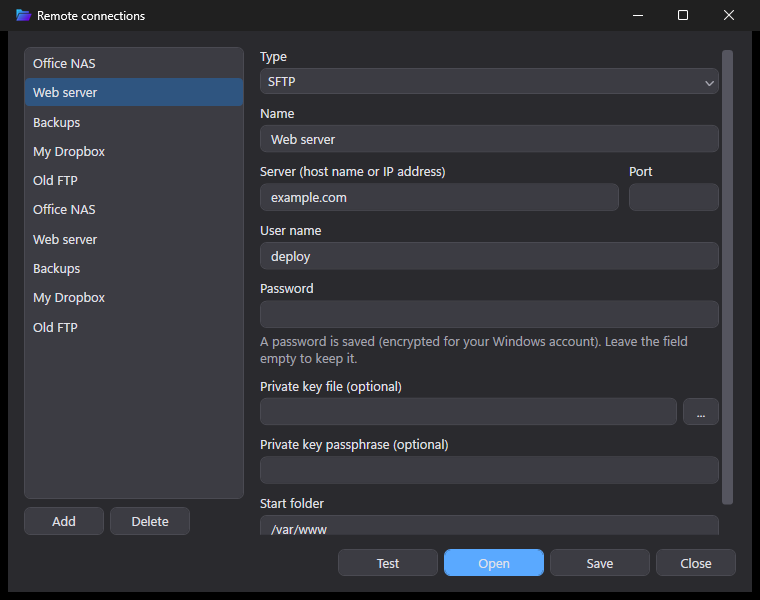
The Remote connections window with the saved connections listed and an SFTP server's settings
Remote

FTP, SFTP, OneDrive, Google Drive, Dropbox, Amazon S3 and SMB, right in a card

Save a connection once and the server opens in a card like any other folder — browse it, copy with F5, move with F6, or drag files to the other panel.

  • Upload, download, or copy between two servers, with progress
  • Opening a remote file downloads a copy and opens it in the right card
  • SFTP with a password or a key (PuTTY .ppk, OpenSSH); saved passwords can be read only by your Windows account
  • Saved FTP and SFTP connections, OneDrive, Google Drive and Dropbox desktop folders, SMB shares and CD/DVD/BD drives right in This PC, each with its own sharp icon
Servers and clouds, opened like a folderOpen an FTP, SFTP, OneDrive, Google Drive, Dropbox, Amazon S3 or SMB location in a card and browse it like any folder — copy with F5, move with F6, or drag files between the panels. Saved FTP and SFTP connections are listed in This PC, your OneDrive, Google Drive and Dropbox desktop folders show up there by themselves. SFTP signs in with a password or a key (PuTTY .ppk or OpenSSH), and saved passwords are encrypted so that only your Windows account on this PC can read them.
And there's more

The small things that add up

Features that need no screenshot, but you will be glad of every day.

Automation

Batch rename, with a live preview

Rename a whole selection at once — or gather files from whole folders by a wildcard/regex filename rule — by search-and-replace or a fixed new name, with letter case, sequential numbering and an extension override. See every result before anything on disk changes.

Checksums

Verify a file or folder with one right-click

Calculate CRC32, MD5, SHA-1 or SHA-256 for any file or folder, with a copy-to-clipboard button next to each result — handy for checking a download against the checksum its publisher listed.

Keyboard

Mouse optional

Total size of folder with Space, cut/copy/paste with Ctrl+X/C/V, permanently delete with Shift+Delete, zoom the whole UI with Ctrl+ and Ctrl− — just like your editor.

Keyboard-first

Every action within keyboard reach

One consistent dark theme, the same Ctrl-based shortcuts in every panel and card, and Ctrl+ +/− to zoom the whole UI — learn the shortcuts once, use them everywhere in the app.

Onboarding

A setup wizard, and a tour when you want one

First launch walks you through picking a language, a theme, a background picture and which terminal buttons you want, then offers a guided tour that points out bookmarks, cards, previews and more right on the real window. Replay it any time from the Help window's Tour tab, which also has every keyboard shortcut grouped and searchable.

Updates

Updates itself, quietly

A quiet button next to the window controls lights up when a newer release is out. One click downloads it, installs silently in the background — no admin prompt, no wizard — and starts the new version back up.

Licensing

Try it free, no key required

The full 30-day trial needs nothing but a download. Activate a key later from the same dialog, and it keeps working through a short offline grace period if you're briefly without a connection.

Your files, at the speed of thought.

Thirty days, every feature, no strings.

Start free trial30-day full trial