Two panels.
Multiple features.
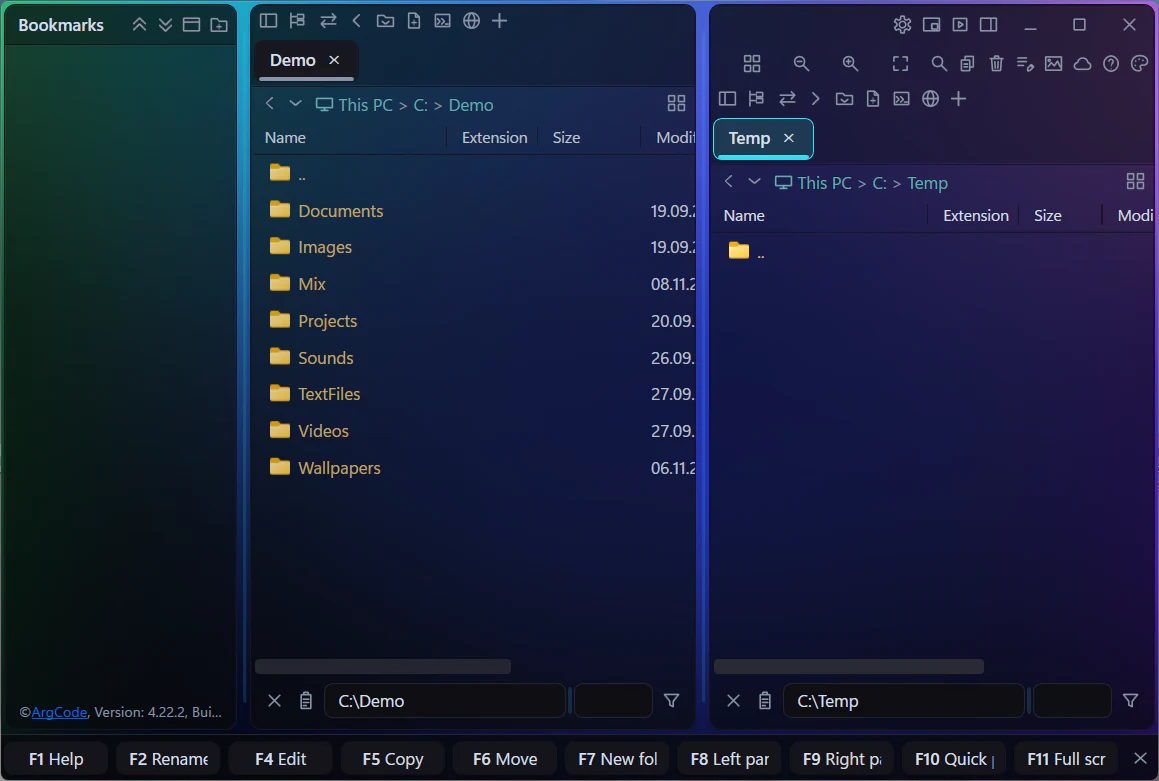
ArgCode Commander is a dual-pane file manager for Windows 10 and 11 (64-bit: x64 and ARM64), designed to provide fast, easy, and convenient file management.
Everything you reach for, in one window
Pick a topic, or just let them play one after another.

Bookmarks
Bookmarks (favorites) of folders and files are the heart of the application: multi-level, drag-and-drop, and above all reliable. They are stored in a readable text file, always written atomically with an automatic backup of the previous version, so you will not lose them even after a crash or power failure. These bookmarks can be organized into categories and nested tree structures, dragged and dropped, and renamed without affecting the names of the files or folders they reference. This is particularly useful for folders and files that you use frequently and want to keep readily accessible without navigating through complex directory structures. Renaming bookmarks is especially valuable when working with multiple folders that contain subfolders with identical names and you either do not have permission to rename them or simply do not want to. A typical example is photo collections from different years, where each collection contains a subfolder named 'Photos'. By renaming the bookmarks to 'Photos 2020' and 'Photos 2021', you eliminate confusion and instantly know the contents of each folder.
See it in the feature tour →
Two panels & tabs
The two-pane layout allows you to copy, move, and drag files between folders without opening additional windows. Each pane can contain any number of tabs, and each tab can represent a folder, text editor, file preview, or terminal. Tabs can be dragged between panes, reordered, and arranged to suit your current workflow. The panes can be resized, hidden, or shown as needed.
See it in the feature tour →
Instant previews
The application provides fast previews of text files, images, videos, music, web pages, PDF documents, CSV files, HTML, and Markdown documents. The advantage is that you do not need to open a separate application for each file type. Everything is available in a single window, allowing you to stay focused on your work without constantly switching between programs and managing windows on your screen.
See it in the feature tour →
Editor, CSV & web
The application includes a built-in advanced text and source code editor with syntax highlighting for many programming languages and useful features such as automatic saving, code and text folding/unfolding, and line wrapping. It also offers live CSV previews in both text and tabular formats, with individual columns color-coded in both views. A built-in web browser with bookmark support allows you to browse the internet without leaving the application.
See it in the feature tour →
Pictures, video & music
The image viewer with EXIF metadata support enables basic image editing operations such as cropping, rotating, and flipping images, as well as automatic photo slideshow presentations. The built-in video player supports video trimming and subtitle creation and viewing. Multimedia support is further enhanced by an integrated audio player.
See it in the feature tour →
Bulk tools
The application includes several tools that significantly simplify and accelerate bulk operations. Available tools include file search, duplicate file and folder detection (ideal for photo and video management), batch file renaming based on rules, and bulk file deletion according to defined criteria (for example, when cleaning up log files). Duplicate files, photos, and videos are compared by file size and checksum rather than filename, ensuring that identical files with different names are also detected.
See it in the feature tour →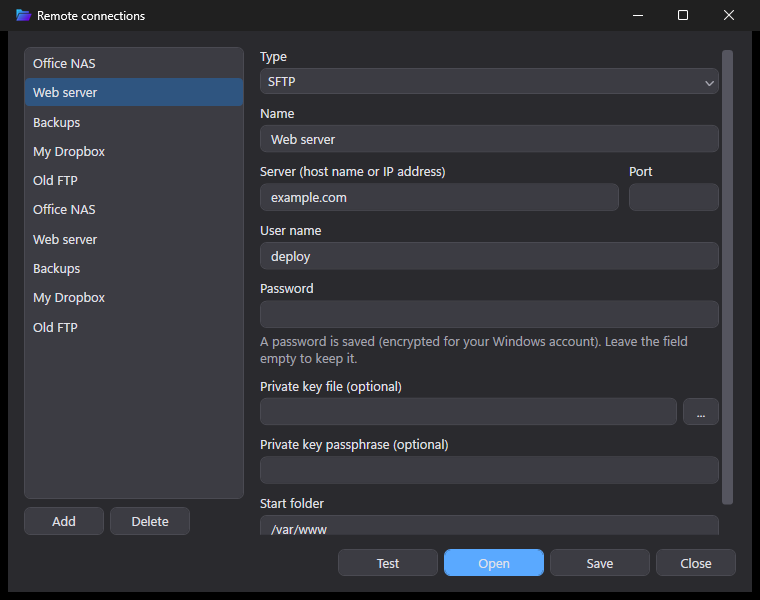
Servers & clouds
Support for connections to FTP and SFTP servers, as well as cloud storage services including OneDrive, Google Drive, Dropbox, and Amazon S3, is naturally included.
See it in the feature tour →
For developers
For software developers, hardware engineers, and IT administrators, the application provides built-in PowerShell 7, serial port, and TCP client/server terminals, a text and source code editor with syntax highlighting for many programming languages, live Markdown preview, and live HTML preview. Productivity is greatly enhanced by the ability to send commands directly from the text editor to a PowerShell 7 terminal, serial port, or TCP client/server terminal. By pressing the F8 key, you can send selected text, multiple highlighted lines, or the current line.
See it in the feature tour →A tour of the key features
The things you will use every day, each with a look at the real app.


Shortcuts that feel obvious
If you already know these from your editor or browser, you already know how to use ArgCode.
Try it free, then pick how you pay
Thirty days with everything unlocked and no card. After that: by the month, by the year, or once and for all. Checkout and licenses are handled by Freemius.
- Full functionality, nothing held back
- All updates released during the trial
- Locks after day 30 without a license
- Every update while you subscribe
- Move your license to a new PC anytime
- Switch to yearly or lifetime later — the unused time is credited
- Every update released during your year
- Move your license to a new PC anytime
- Switch to lifetime later — the unused time is credited
- No recurring payment, ever
- Keeps working for as long as you like
- Future version updates not included
14-day satisfaction guarantee
You are fully protected by our 100% Satisfaction Guarantee. If over the next 14 days you are unhappy with our app or have an issue that we are unable to resolve, we'll happily consider offering a 100% refund of your money — whether a feature you needed is missing, something didn't work as expected, or you hit a problem you couldn't resolve (third-party issues included).
Upgrade any time, prorated
Moving from monthly to annual, or from a subscription to lifetime? Checkout credits what's left of your current billing cycle, so you never pay for the same days twice. A lifetime purchase can be credited for up to 30 days after buying.
Your files, at the speed of thought.
Thirty days, every feature, no strings.
Questions, answered
The app locks until you enter a license key. Nothing is deleted or lost — your bookmarks, settings, and files are exactly as you left them the moment you activate a license.
Yes. Deactivate it on the old machine and activate it on the new one from your account — no need to contact support.
A one-time purchase entitles you to the version you bought, forever, with no recurring cost. Future version updates are part of the monthly and annual subscriptions — you can switch to one of those any time.
Yes — every purchase comes with a 14-day satisfaction guarantee. If within 14 days you find a feature you needed is missing, something doesn't work as expected, or you hit a problem we can't resolve for you (even one caused by third-party software), ask for a refund and we'll happily consider giving you 100% of your money back.
Any time. Checkout prorates the change automatically: whatever is left of your current billing cycle is credited against the new price. For a lifetime license the proration window is 30 days from the purchase.
Windows 10 and 11 (64-bit: x64 and ARM64), with the free .NET Desktop Runtime installed. The installer will point you to it if it's missing.
Checkout, VAT, invoices and license delivery are handled by Freemius, our payment provider — your card details never touch our own servers. Prices are shown in EUR; VAT is added at checkout where your country requires it.
Only if you switch Report crashes on in Settings — it is off until you do, and while it is off nothing leaves your computer. With it on, the app sends a technical description of the error and nothing else: file and folder names, web addresses, passwords, keys and your license key are stripped out first, and your user name, computer name and IP address are never included. Passwords and payment details saved in the web view cards are stored by the browser engine itself and are not readable by the app at all.
It carries on. An unexpected error is caught and shown in a message box, with everything you had open still open — the app does not close itself over one.
No. The web view is a browser card for the pages you use while working with files — documentation, a ticket, a download page, a file-sharing site — so they sit right next to your folders instead of in another window. It uses the same engine as Microsoft Edge, so pages look and work as they should, it keeps its own bookmarks and its own private profile for saved logins, and it can open the local HTML files you are editing with a live preview. What it is not is a full browser: there are no extensions, no synced profiles, no tab groups, no download manager, no password/payment/auto-fill data manager. Keep your favourite browser for browsing; use the web view for the pages that belong next to your work.
It covers the same dual-pane basics — two panels with tabs, keyboard control, quick filter, find files, batch rename — and builds in what others add through plugins or leave out: a code editor with syntax highlighting and auto-save, PowerShell, serial port and TCP terminals, PDF, Markdown and CSV views, a video player with cutting and nested bookmarks for folders, files and websites. See the feature-by-feature comparison with Total Commander, Directory Opus, FreeCommander XE, OneCommander, Double Commander and muCommander.